How to Lodge a DVA Claim on myService
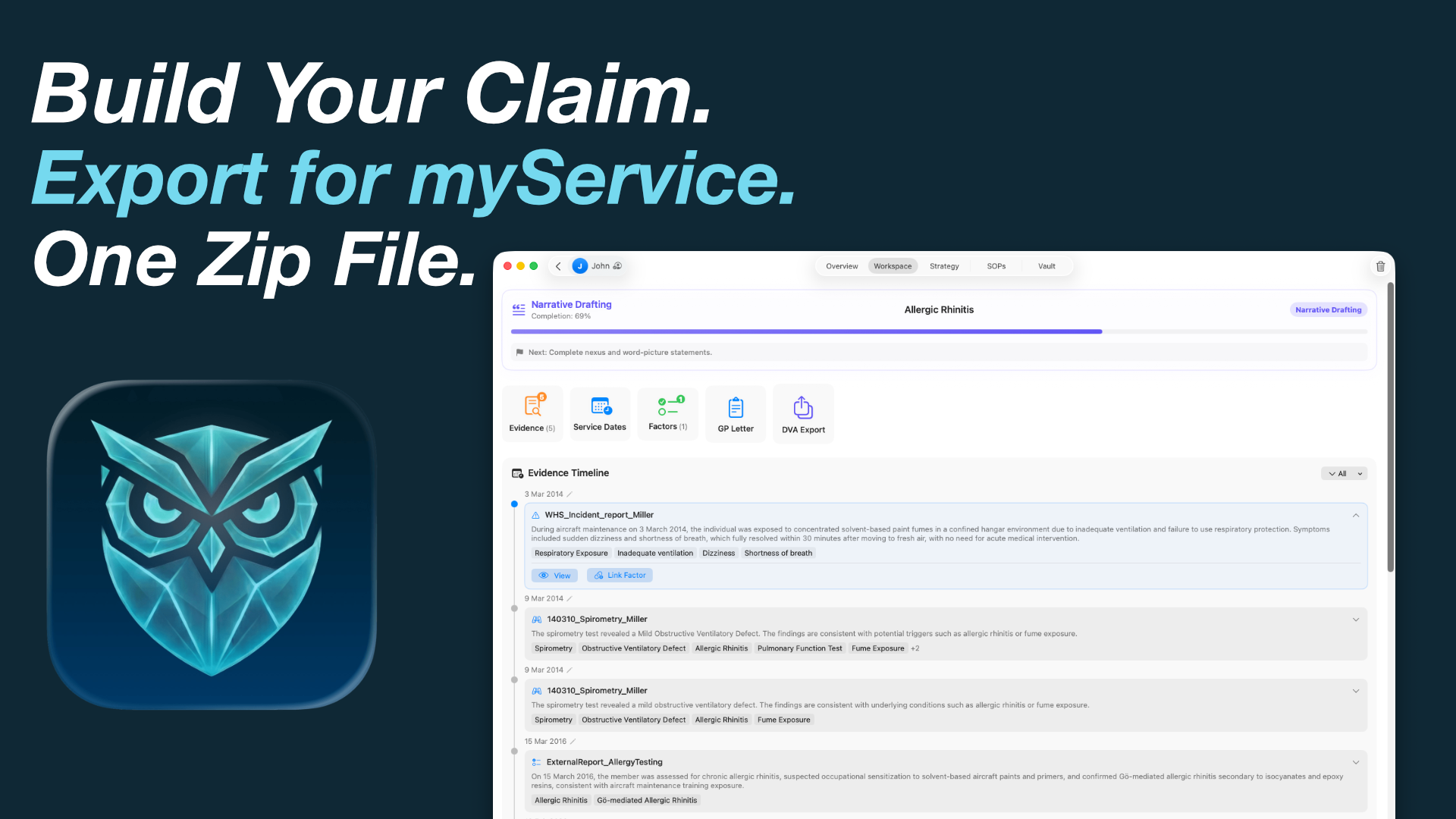
myService is DVA’s online portal for lodging and managing claims. This guide walks Australian veterans and advocates through how to lodge a DVA claim on myService, what to prepare before you click submit, and how Athena keeps your claim documentation organised on-device — then exports a Zip pack ready to upload.
Does myService have an app?
No — myService is a web portal. It works well in the iPad and Mac browsers (it’s built to be used on the go), but there is no official DVA app to download. The practical setup for iPad users is to open myService in the browser and keep Athena alongside it: Athena prepares your claim pack offline, and you upload it through the portal whenever you have a connection.
Before you start: evidence checklist
Lodging is the easy part. Rejection risk usually comes from thin or poorly mapped evidence. Before you open myService, assemble:
- Diagnoses — specialist or GP letters that name each claimed condition clearly.
- Service context — dates, locations, and events that connect to RMA SOP factors (or to a presumptive liability route, where it may apply).
- Medical chronology — discharge summaries, JeHDI/UMR extracts, imaging, and treatment notes in date order. Request Defence health records through the official personal information request process if you do not have them yet.
- Claim narrative — a plain statement linking service → exposure/event → onset → diagnosis (or the presumptive service criteria, if that pathway applies).
If you are still organising years of PDFs, see how to organise medical evidence and JeHDI medical records export & how to read your UMR.
How to lodge a DVA claim on myService (step-by-step)
- Sign in via myGov to myService with the veteran’s credentials (advocates: use authorised access pathways as applicable).
- Start a new claim and select the claim type that matches the veteran’s circumstances.
- Add conditions using wording that aligns with medical evidence and, where relevant, the SOP condition name.
- Attach evidence — upload clear PDFs; name files so DVA can scan them quickly (e.g.
2024-11-12_rheumatologist_report.pdf). Prefer focused extracts over one unsorted multi-hundred-page dump. - Complete the claim statement — explain the chain of connection; do not assume the decision maker will infer it.
- Review and submit, then save confirmation screens and any reference numbers back into Athena with the claim.
DVA myService export: Athena is your source of truth
You do not need to rebuild a parallel folder tree for every claim. Once documents are imported into the Evidence Vault, analysed, and attached to the claim, the organisation is done. Originals stay unmodified in the folders you imported from — Athena never rearranges or overwrites your source files.
When you produce a myService export, Athena saves it as a Zip folder. If you choose, that Zip is packaged with the evidence already attached to the claim from the vault. That makes uploading to myService easy, efficient, and comprehensive — one pack, ready to go.
- Import — bring JeHDI/UMR and civilian PDFs into the vault; source folders stay as they are
- Analyse & attach — tag findings and link documents to the claim in-app
- Export — generate a myService Zip; optionally include attached vault evidence
- Upload — use the Zip contents in the portal, then keep the claim and confirmation trail in Athena
Map evidence to SOPs (or presumptive) before you upload
myService accepts files; it does not tell you whether your evidence meets an RMA factor. Cross-check each condition against the relevant Statement of Principles first. Start with the SOP guide or the SOP Library Preview.
From 1 July 2026, some veterans may also qualify under presumptive liability — a parallel pathway that does not replace SOPs for every claim.
How Athena prepares a myService pack — securely on your device
Do the heavy lifting before you open the portal. Athena keeps medical records private on your Mac or iPad, then helps you walk the myService workflow with evidence already structured.
- Evidence Vault — import JeHDI/UMR and civilian PDFs; unpack large exports, tag findings, and attach evidence to the claim (originals stay where they were)
- SOP Navigator & presumptive checks — confirm factors or listed presumptive routes before you draft
- Claim Statement Builder — guided sections, Case Briefing for strongest evidence per condition, and a real-time checklist of what is still missing
- Built for myService — Zip export that follows the portal step by step; optionally package attached vault evidence so uploads are complete in one go; presumptive claims can carry the full instrument citation for the delegate
- Privacy — drafts and medical files stay on your device; nothing is sent to a third-party cloud AI
Learn more about the Claim Statement Builder and the Evidence Vault.
Common myService lodging mistakes
- Uploading unsorted multi-hundred-page scans without a cover chronology
- Claiming a condition without a clear diagnosis letter
- Ignoring SOP timeframes (onset windows matter) — or skipping a presumptive check when the condition may be listed
- Leaving evidence scattered in folders instead of attaching it to the claim before you export
Struggling with this? Download Athena.
Map medical records to SOPs securely on your device before you lodge on myService.